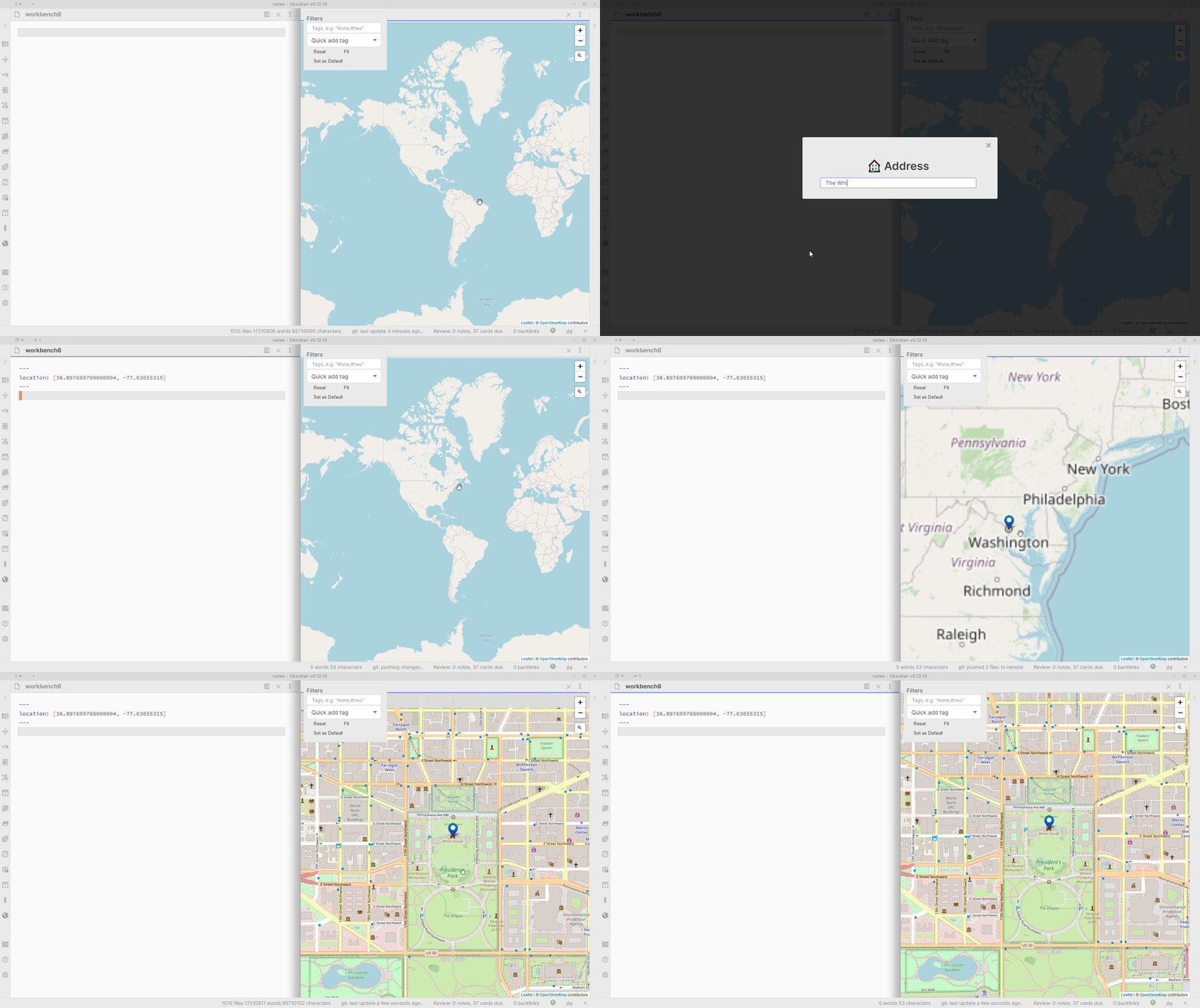
Macro: Add location long-lat from address
This is especially useful for the Obsidian Map View plugin.
You can find the script here. Here is a guide to installing user scripts like this one.
- Grab the script from this page. This can be done in multiple ways:
- By clicking the 'Raw' button, and then saving the 'page' (CTRL+S on Windows, probably command+S on Mac), or
- Copying the file contents and saving it as
getLongLatFromAddress.js. The.jsis crucial.
- Save the file to somewhere in your vault. It doesn't matter where, as long as it's in your vault.
- Open QuickAdd settings, click 'New choice', and select 'Macro' from the menu. This creates a Macro choice and opens the Macro Builder.
- Give the choice a name of your choosing (I call mine 'Mapper'). You can rename it by clicking its title at the top of the Macro Builder. If you close the builder, click the ⚙ (gear) 'Configure' button on the choice in the list to reopen it.
- In the Macro Builder, find the 'User Scripts' input. Place your cursor in it and it should display a suggester. Assuming you have no other
.jsfiles in your vault besides the one we just grabbed, it should be the only one shown. Either way, you'll want to click it, and then click 'Add' (you can also click 'Browse' to pick the script file). It should get added as the first command. - Close the QuickAdd settings. You can now run QuickAdd with the
QuickAdd: Runcommand in the command palette. The choice you've made should appear.
It adds a YAML property to the active file called location with [lat, long] as its value given the address you enter.
Important: Requires MetaEdit. If you have your edit mode in MetaEdit set to All Multi, do note that you will need to remove the braces on line 23 in the script, so it looks like this: await createYamlProperty("location", `${lat}, ${lon}`, activeFile);.